Creating a link between the rows of two tables
The idea. RowShare lets you create links between tables, and more precisely between the rows of a table and those of another table. For example, you can imagine links between orders and customers, ap…

The idea
RowShare lets you create links between tables, and more precisely between the rows of a table and those of another table.
The link between two tables is materialized by the fact that certain columns of a table are displayed in another table.
The table that provides these columns is called the parent table, the one that displays them the child table, and the columns displayed this way the parent columns.
A parent column can in turn be exposed to a third table.
First: Create the link between tables
Of course, you need two tables:
- the parent table: the one that contains the data that you want to display in the child table
- the child table: the one in which you want to display this data
In the child table, add a "Row from another table" column from the "Lists of choices" category:
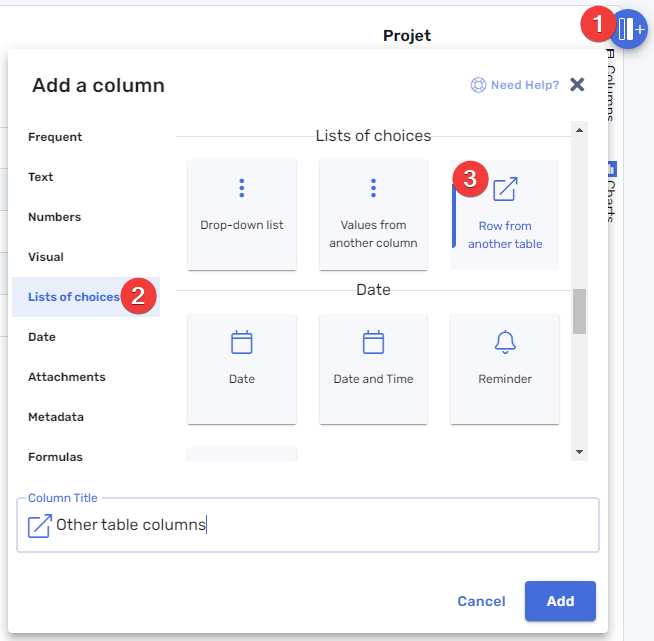
The settings of this new column are now displayed. Here are the next steps:
- Pick the parent table in the list of tables
- Choose the columns you want to display in your child table, then click on the top arrow to select them (here: Client Name and Client Address)
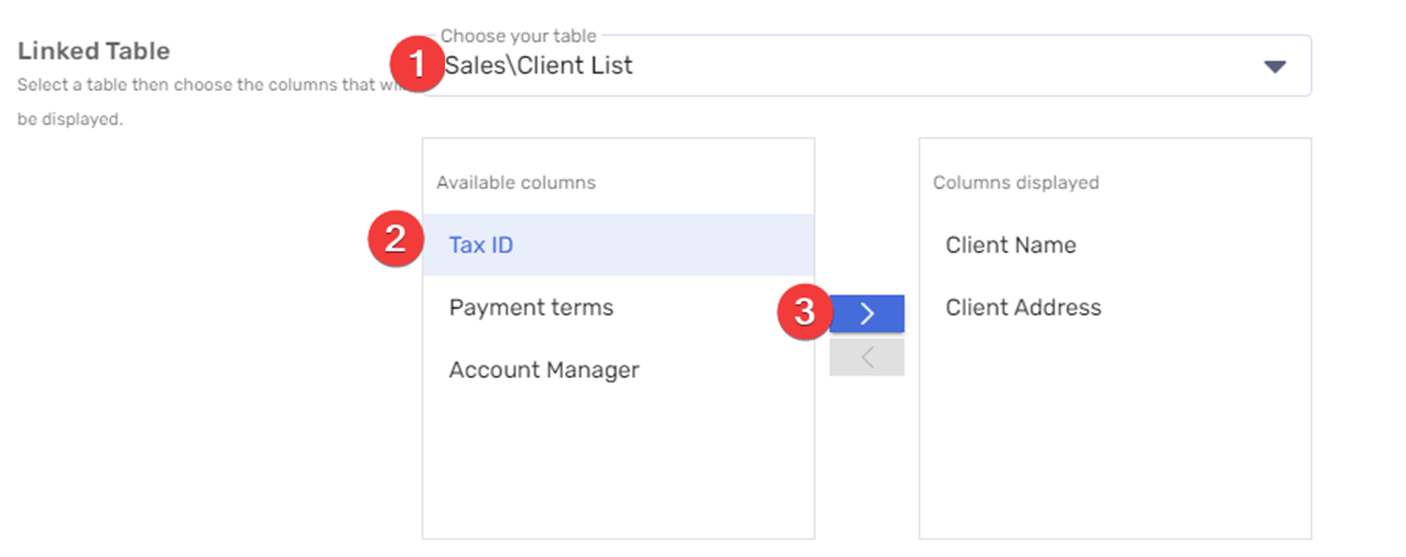
That's it! Return to your table, refresh the page if necessary, and these new columns have been added to your table. Of course, they're still empty.
Advanced options: filter and sort available rows
When selecting a row from the parent table, the list can sometimes be long. You can narrow it down and/or sort it to make it easier to find the row you are looking for, using the Advanced options in the column settings.
Accessing advanced options In the settings of the "Row from another table" column, click Advanced options to reveal two additional fields: Filter and Sort.
Filtering available rows The Filter field lets you restrict which rows from the parent table appear in the selection popup. The value must be entered in the following format (JSON): [{"col": "ColumnName", "val": ["Value1", "Value2", ""]}] The filter applies to a single column of the parent table:
col: the exact name of the column in the parent table to filter onval: the list of allowed values. The empty string""matches rows where this column has no value.
Example: to only show rows where the Client column equals "SoftFluent", "RowShare", or is empty, enter: [{"col": "Client", "val": ["SoftFluent", "RowShare", ""]}]
Sorting available rows The Sort field defines the order in which rows appear in the selection popup. Simply enter the exact name of the column in the parent table to sort by.
Example: to sort the choices alphabetically by the Client column, enter: Client
Filtering and sorting are independent: you can use either one, both, or neither.
Then: Connect rows
The selected columns have been added to the far right of the table, under a column group header. You can move them by dragging the group header. If you drag just one of the new columns, it will move within the column group.
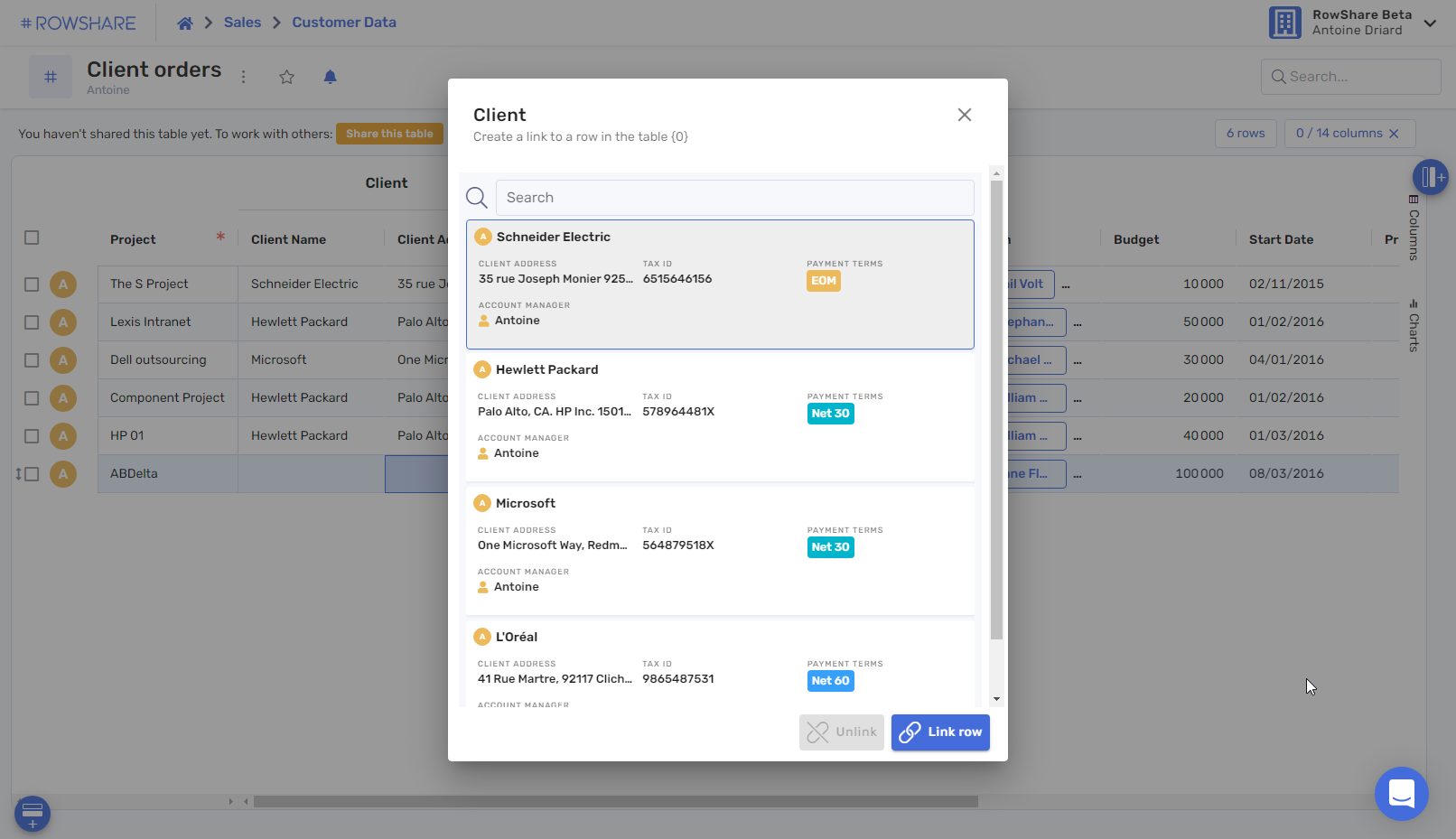
In one of these new columns, double-click on a row to choose a row from the parent table. RowShare shows you a summary of each row in the parent table. Of course, you will only be shown the rows you have access to. Do not hesitate to use the search bar to find your row.
How did we do?
How to configure your RowShare columns?
